Posting an I Wanna Love You AI Video on TikTok
 I Wanna Love You AI Team
The export is already 9:16. Here is how to add the sound, label AI content, write a caption that matches the search, and avoid a muted upload.
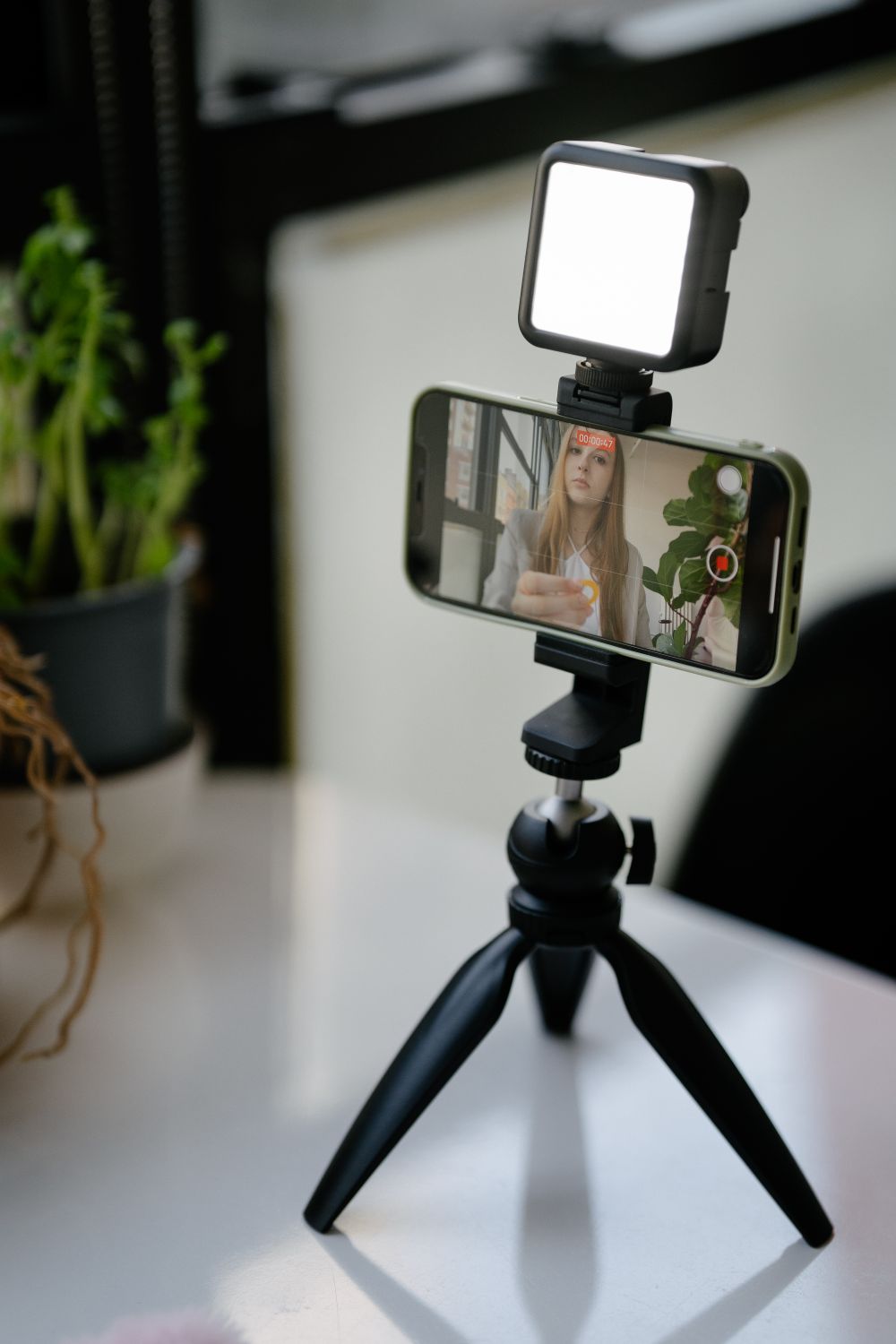
The render is half the job. The other half is posting it so it looks native: vertical, on-beat, labelled correctly, and with the sound attached inside the platform instead of baked into the file.
This guide is about that second half.
The file is already the right shape
Every render is 9:16 vertical and 12 seconds. That is the shape TikTok, Reels and Shorts expect, so the correct move is to upload the MP4 directly.
Do not crop it again. Do not put it through a second editor to “fix” the framing. Re-cropping a vertical clip is the most common way to make it look soft, and it adds nothing.
Add the sound inside TikTok
The file is silent on purpose. Open the TikTok editor, search for the trend sound, and attach it there.
There are two reasons:
- Licensing. The recording belongs to its artists and label. When you attach the sound inside TikTok, the platform handles the licence and credits the rights holder.
- Reach. A file with the song baked in can be muted or limited. A platform sound does not have that problem.
The same logic applies to Reels and Shorts: attach the sound in the app, not in the export.
Turn on the AI-generated content label
TikTok asks creators to label realistic synthetic media. Turn the label on when the app offers it.
This is not a penalty. It is a platform rule, and accounts that skip it are the ones that get surprised later. The label does not stop the video from being recommended; it stops the video from being a policy problem.
Write a caption that matches the search
People search for this trend by name. A caption that says what the video is helps both the viewer and the platform understand it.
A simple structure:
- What it is. “I Wanna Love You AI video from one photo.”
- What is in it. “My dog, who has no idea.”
- The invitation. “Would you post yours?”
Then add the trend hashtags and tag the original sound. Avoid claiming that the artists endorsed the video; they did not, and the claim is both false and unnecessary.
What performs, and what does not
What tends to work:
- The pet version, because the joke is immediate.
- A before/after split: the source photo, then the performance.
- A reaction shot at the end, if you have one.
- A caption that admits the absurdity instead of overselling it.
What tends not to work:
- A caption that claims the video is real footage.
- A watermark from another tool.
- A horizontal crop with black bars.
- A clip with the wrong sound or no sound at all.
A note on the “AI” conversation in the comments
Some viewers will ask whether it is real. The honest answer is the best one: it is an AI-generated performance made from a photo. That answer is also the most interesting one, because the process is the content. People like seeing how the trick works.
Do not argue about whether it is “cheating”. The trend is a performance; every version is a performance. The AI version just moves the performance from a camera to a model.
Cross-posting
The same 9:16 MP4 works on Reels and Shorts. Upload it to each platform and attach the sound in each app. Do not download a watermarked repost from TikTok and re-upload it; use the original file.
If you want to post the same clip on multiple accounts, keep the AI label on each one. The rules are per upload, not per person.
What to do if the upload is muted
If the audio is muted after posting, it usually means the sound was not licensed for that use or the file carried a copyrighted track. Replace the audio with the in-app trend sound and repost. A silent export is designed to avoid this; a video with the song baked in is the usual cause.
The checklist
- Upload the 9:16 MP4 directly.
- Add the sound inside the app.
- Turn on the AI-generated label.
- Write a caption that names the trend.
- Tag the original sound.
- Do not claim artist endorsement.
- Post the same file to Reels and Shorts if you want.
That is the whole process. The step-by-step guide covers the render itself, and the cost breakdown covers the price before you start.